
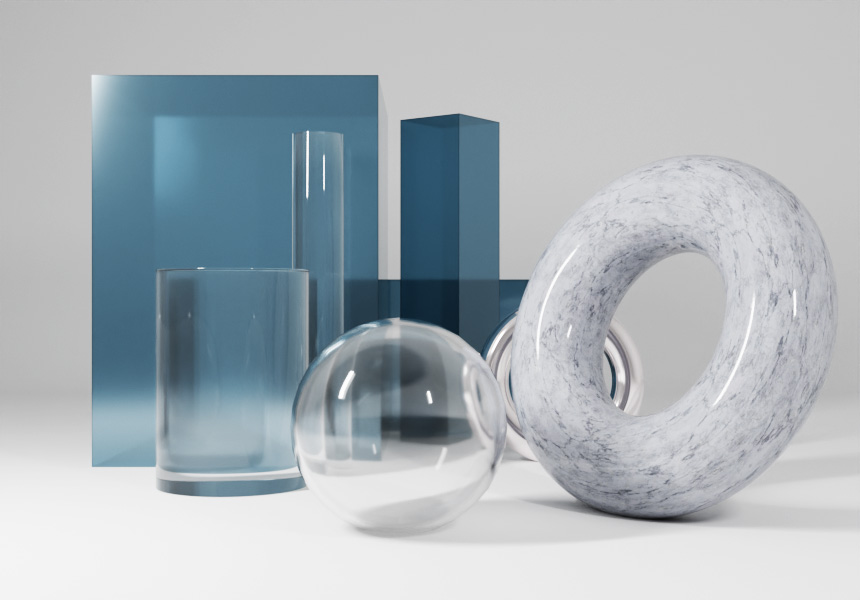
Blender is free 3D creation software that lets you make 3D models, backgrounds for illustrations, animations, and videos. Even now that AI can create images and 3D models, Blender is drawing renewed attention because it lets you finish a piece exactly the way you intend.
What kind of software is Blender?
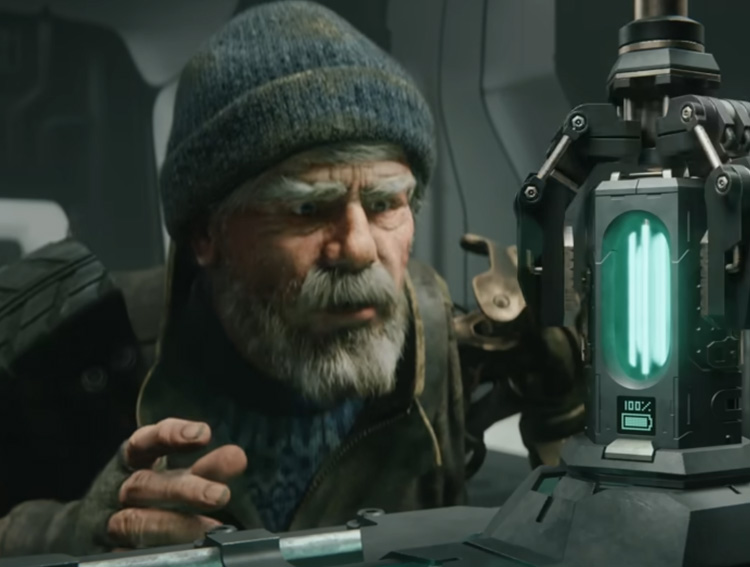
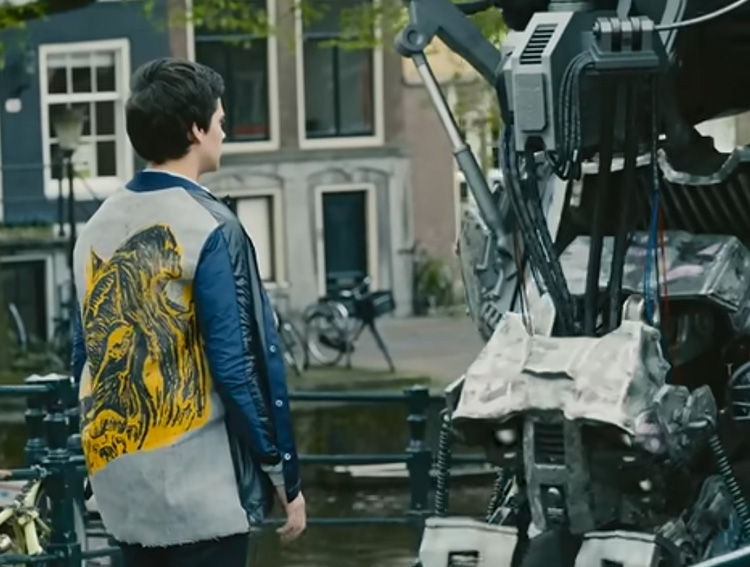
These are scenes from "Charge" and "Tears of Steel," official short films produced by the studio behind Blender's development.
Blender is free 3D software, and it's used in professional film and game production as well. From "modeling" (shaping 3D forms) to "materials" (adding color and texture), "lighting" (illuminating the scene), and finally "rendering" (outputting the result as an image or video) — every stage of a 3D project fits inside this one piece of software. Video editing, 2D animation, and "sculpting" — shaping forms as if carving clay — are all in there too.
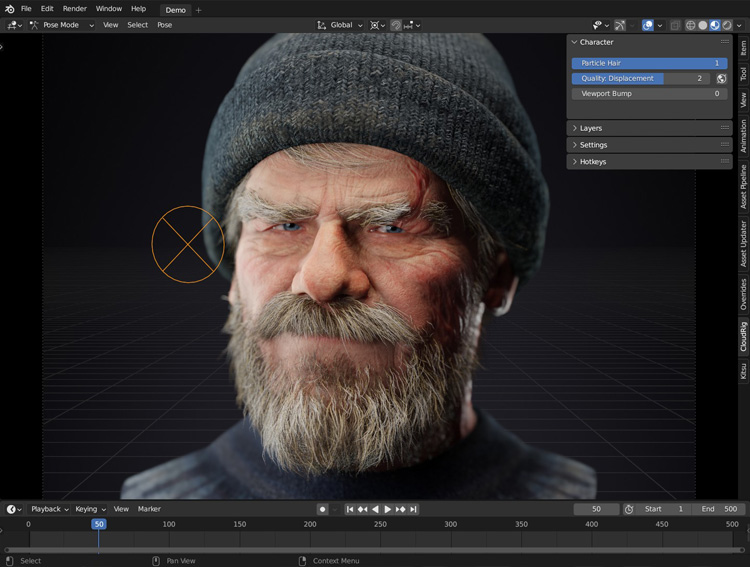
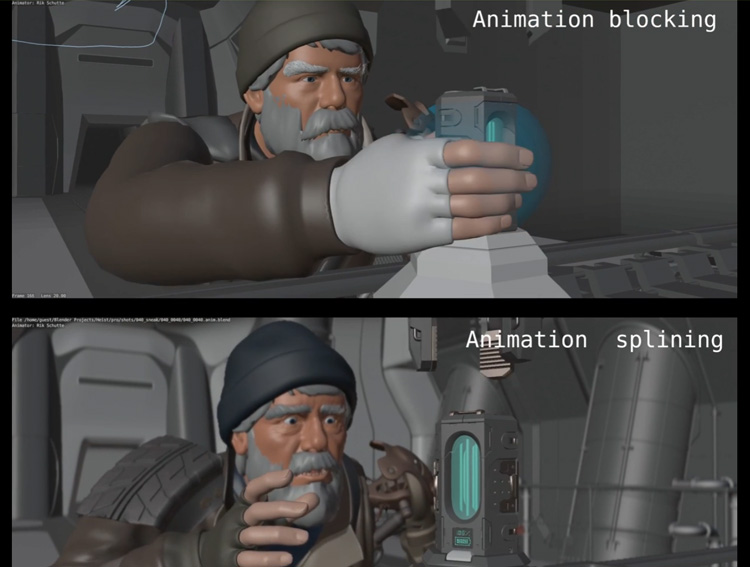
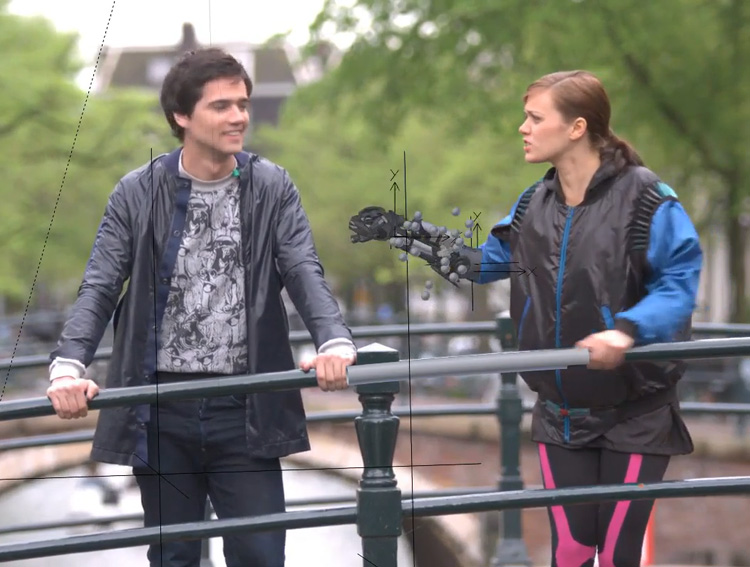
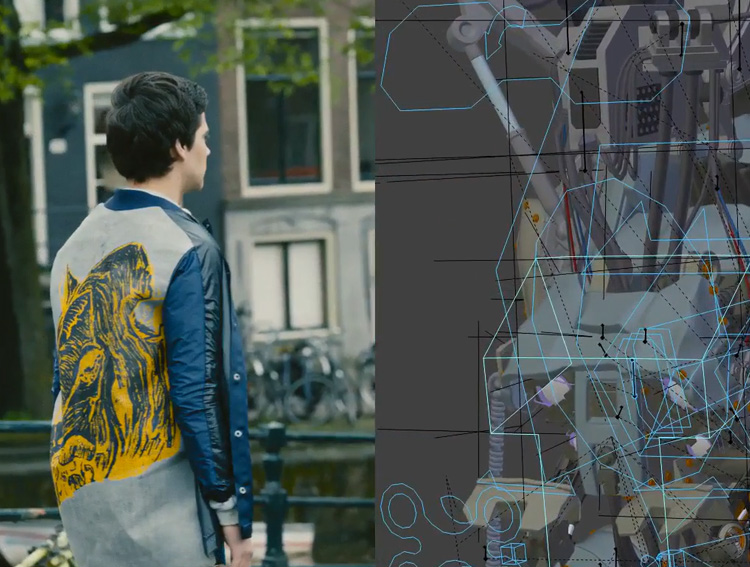
These are screens from the making of these short films. From modeling and animation to compositing with live-action footage, most of the work was done in Blender.
Until recently, Maya and 3ds Max were the standard tools for 3D work. I'd been interested for a long time, but both were expensive, not something you could casually try on your own. That's when I found out about Blender, which is free to use. This was something even I could try, so I started using it.
Being free doesn't mean its features are limited. Blender is open-source software built by developers around the world, and you can use it commercially.
Images: "Charge" (CC BY 4.0) and "Tears of Steel" (CC BY 3.0) / (CC) Blender Foundation | studio.blender.org
I made a simple 3D piece in Blender
The short films you just saw were made by professionals at the studio behind Blender's development. As you'd expect, the quality is high, and that might make Blender seem too difficult to use yourself.
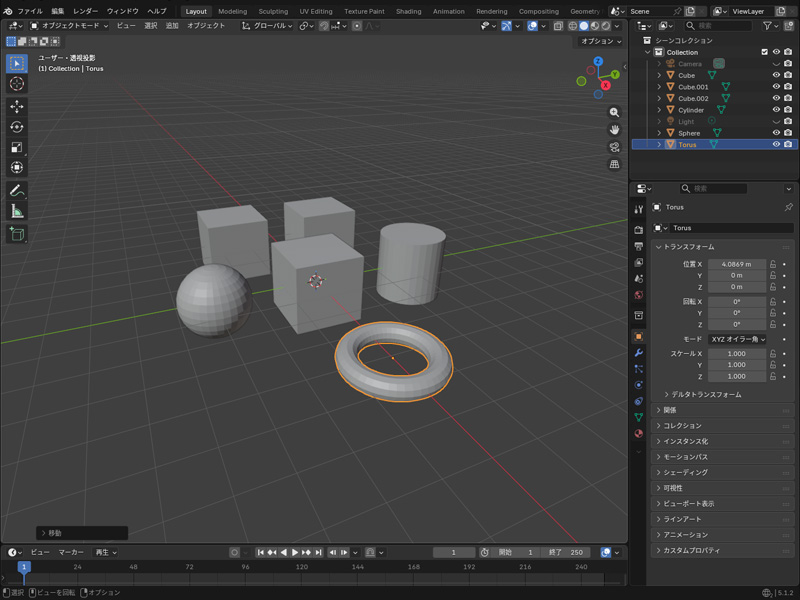
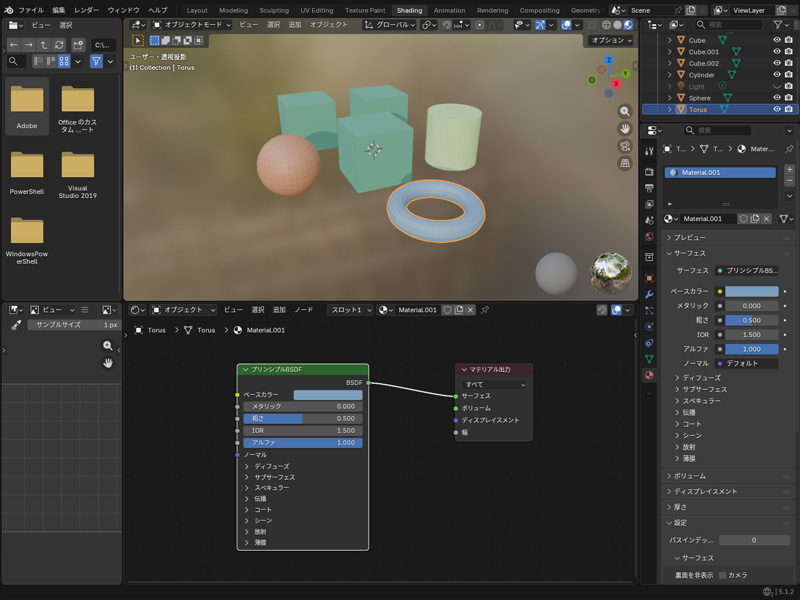
So I built something simple in Blender myself. I didn't need any advanced modeling skills. I just moved the cube that appears in the center of the screen, added basic shapes (primitives) like the sphere, and changed their materials.
-
STEP 01
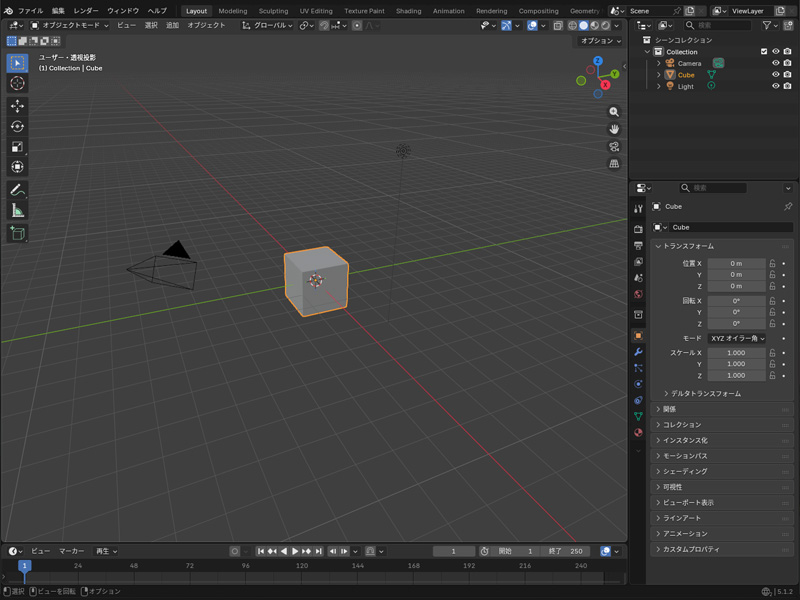
The screen you see when you first open Blender
-
STEP 02
Moving the cube and adding basic shapes
-
STEP 03
Adding color (material)
-
STEP 04
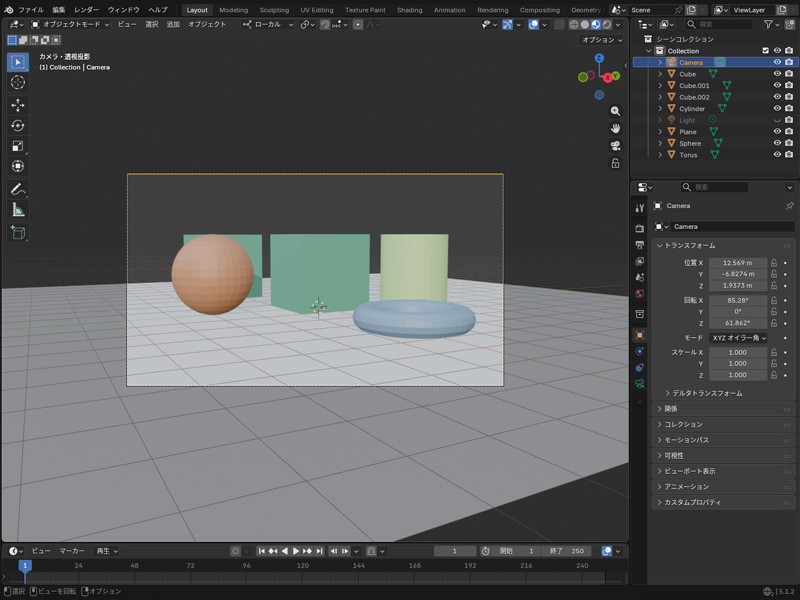
Setting up the camera
-
STEP 05
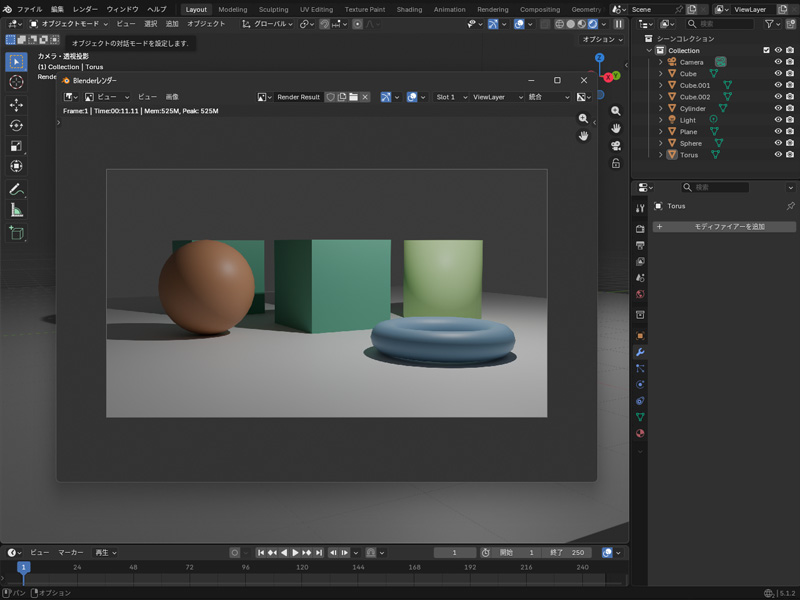
Rendering and exporting
-
STEP 06
Changing materials to make it look like a finished piece
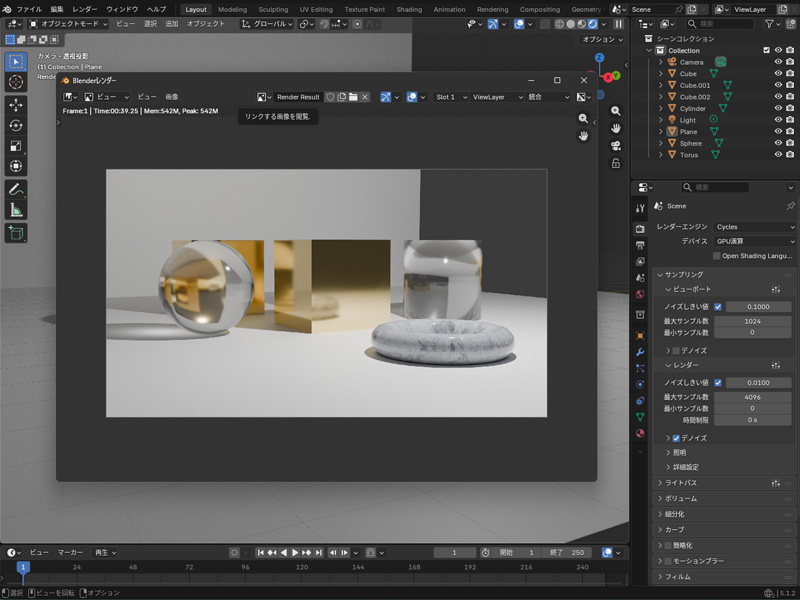
As a finishing touch, I changed the materials to glass, gold, and marble. That alone makes shapes that had only plain colors suddenly look like a finished piece.
The main visual for this article was made this way too, by setting materials on primitive shapes. Even without any special modeling, just changing the materials changes the impression completely. Blender does have its difficult features, but even the basics are enough to make something complete. As long as you don't aim for something complex from the start, making your own work is more approachable than you'd expect.
The process of making a 3D piece in Blender
What we've done so far is part of the standard 3D production process. Moving the cube was the "shaping" process; adding color was the "deciding the look" process. Making a 3D piece in Blender generally follows this order: shape it → decide the look → set the light and camera → export.
-
 Modeling
Shape it
Modeling
Shape it
-
 Materials
Decide the look
Materials
Decide the look
-
 Lighting
Light the scene
Lighting
Light the scene
-
 Animation
Add movement
Animation
Add movement
-
 Camera
Choose the viewpoint
Camera
Choose the viewpoint
-
 Rendering
Export it
Rendering
Export it
What I did this time was just a quick taste of these processes. Still, "modeling" and "materials" aren't difficult concepts at all. They feel closer to "kneading clay" or "painting on color."
So in an age when AI can generate images and video, where's the value in learning software like Blender?
In the AI era, you can learn Blender by asking AI
It used to be that when you ran into something you didn't understand in Blender, searching the web for an answer yourself was the usual approach. You'd look for similar questions, work through outdated information or explanations for a different version, and somehow arrive at a solution. Many people will recognize that experience.
Now it's different. You can ask an AI like ChatGPT or Claude directly: "My screen suddenly changed. How do I get it back?" or "My render came out completely black. What should I do?" You can show it a screenshot of the screen you're stuck on and ask how to fix it. You can raise questions the moment they come up and clear obstacles one at a time as you learn Blender.
AI can also generate a rough draft of a 3D model for you. But that doesn't mean you can use it as your finished work as it is. You still need to decide how to change the materials, how to light the scene, and where to place the camera. Finishing a piece "the way you intend" still requires your own judgment.
It's not that Blender becomes unnecessary because AI can make everything for you. If anything, being able to learn by consulting AI has lowered the barrier to starting Blender.
Is Blender difficult?
Almost everyone struggles when they first start using Blender.
There are simply a huge number of buttons and features, and the viewpoint controls unique to 3D space take some getting used to. Having to think about depth as well as up, down, left, and right can feel unusual, especially if you're used to 2D software.
When I first started using Blender myself, I lost count of how many times I meant to move something along the X-axis, only for it to drift along the Y-axis as well without my noticing. I couldn't get the cube where I wanted it, and I redid it over and over.
This kind of struggle is something many people go through at first. Blender gives you so much freedom that, at first, it can be hard to figure out which tools to use and how to use them.
Learn the features one at a time, starting with the ones you need for what you want to make.
What would you make with Blender?
Having read this far, do you have a sense of how you'd use Blender yourself? Blender isn't only for making finished 3D artwork. It can be used in all kinds of ways, depending on your job or your hobbies.
-
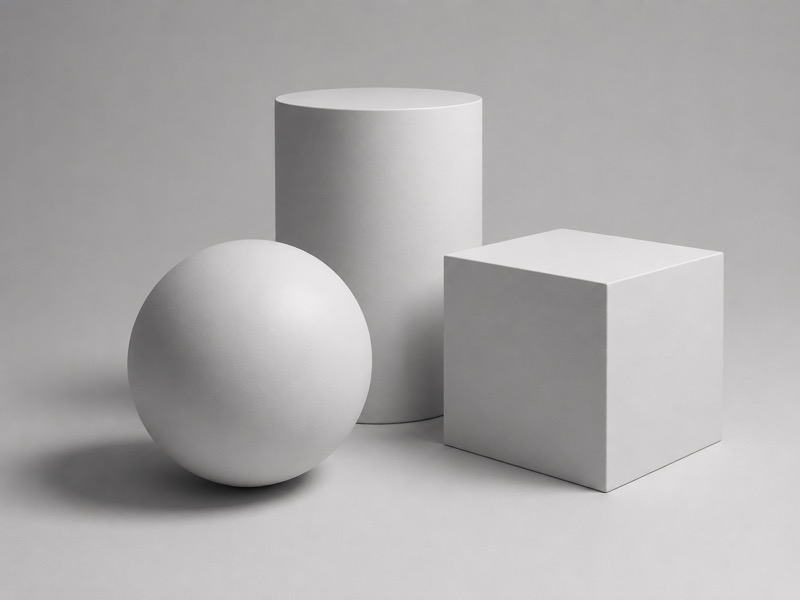
If you're an illustrator
Do you ever find yourself struggling with background perspective and lighting? In those moments, simply placing basic shapes like spheres, cylinders, and cubes in Blender lets you check depth and the direction of light in three dimensions. Here, Blender isn't the finished artwork — it's a reference model for drawing.
-
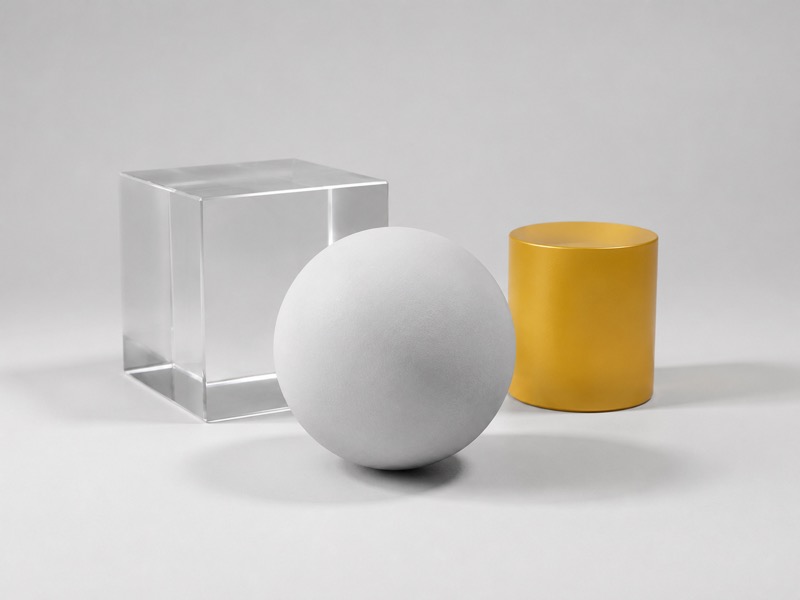
If you're a designer
You can start making your own 3D assets for landing pages and banners. Textures like glass or clay can be reproduced in Blender too. Being able to prepare visuals yourself, at angles, colors, and textures that are hard to find on stock asset sites, is a real advantage.
-
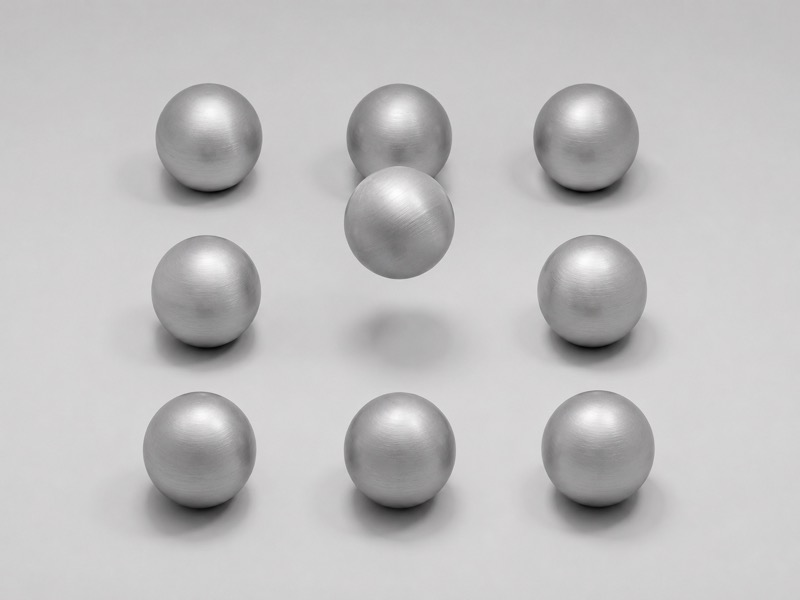
If you're an engineer
In Blender, you can automate your work with Python. For anyone who'd rather build shapes and arrangements with code than operate a mouse by feel, it becomes a place to experiment where you can see the result of what you wrote right away. With Geometry Nodes, you can set up rules to automatically generate arrangements that would take a long time by hand, like lining up many copies of the same shape.
-
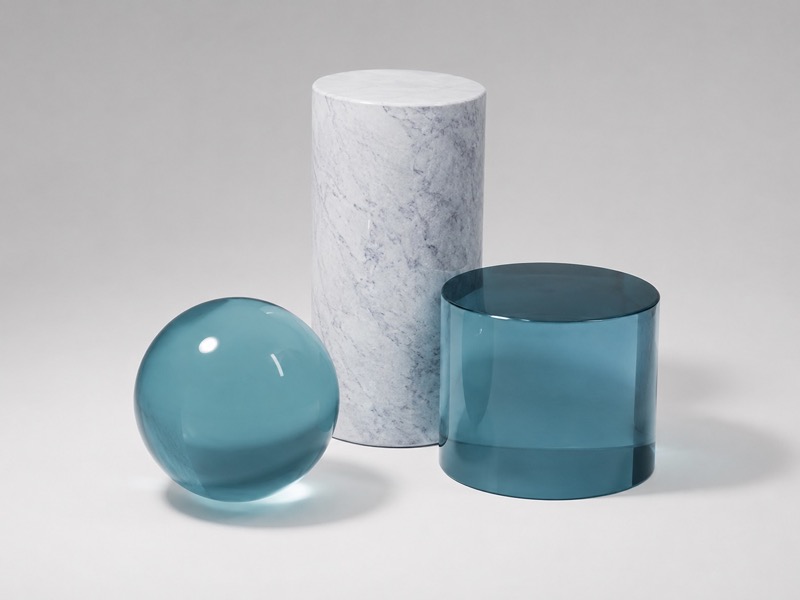
If you're a student
Being free to use is one of Blender's real strengths. You can work on pieces for your portfolio without worrying about cost. Since Blender covers not just modeling but animation and video production as well, you can try out different forms of expression while working out which direction you want to pursue.
-
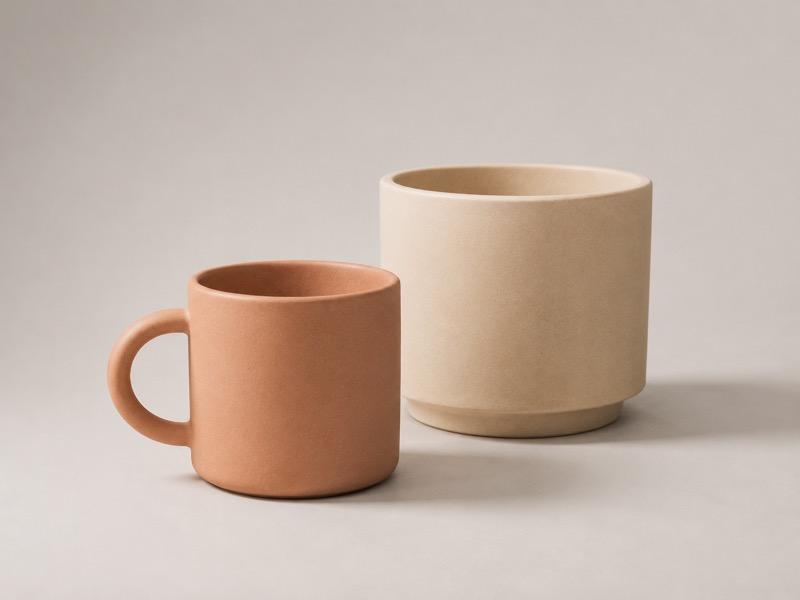
If you want to try Blender as a hobby
Start by finishing one small piece. Even just combining basic shapes is enough to make one. It's a separate skill from drawing, so you can start without confidence in your artistic ability. Once you finish one, new ideas come along with it: "next time I want to change the color," or "I want to make a more complex shape."
A small step you can take with Blender today
You don't need to complete a piece right away. Why not start with a small step you can take today?
- Install Blender (you can download it for free from the official site)
- Launch it and try moving the cube in the center of the screen
- Ask an AI, "I'm a beginner — what should I try first?"
- Find one 3D piece that makes you think, "I'd love to make something like this someday"
Next, let's install Blender and switch the interface language. The next article walks through everything from the download to the initial setup, screen by screen.
Next article: How to Install Blender and Change the Interface LanguageFrequently asked questions
Q. Is Blender really free? Are there any additional charges?
A. No — Blender is completely free. It's neither a one-time purchase nor a subscription. Every feature is free to use.
Q. Can Blender be used commercially?
A. Yes. Blender is open-source software, distributed under a license that permits commercial use as well.
Q. How powerful does my computer need to be?
A. For simple modeling, a typical laptop will work fine. 8GB of memory or more is a good baseline, and 16GB or more gives you room to work. If you want to comfortably create complex scenes and render them, a computer powerful enough to run games or video editing smoothly is a safe bet. Blender runs on Windows, Mac, and Linux. Note that the latest version does not run on Intel-based Macs. In that case, you use the previous-generation LTS release instead. For detailed system requirements, see the supplementary column "More about versions and system requirements" in our complete installation guide.
Q. Can I use it if I can't draw?
A. Yes. Since Blender is software for building solid forms by combining basic shapes, you can create 3D work even if drawing isn't your strong suit.
Q. How long does it take to get comfortable using it?
A. If you just want to make simple shapes, a few dozen minutes at the controls is enough to get the basic feel of it. That said, finishing work exactly the way you envision it takes a fair amount of practice.
Q. If AI can create 3D models, do I still need to learn Blender?
A. AI is good at producing a rough draft of a 3D model. But adjusting the texture, the lighting, and the composition, or making small corrections, requires knowledge of Blender. In the AI era, you don't learn Blender only to build everything from scratch. You also learn it to finish what AI creates exactly the way you want.