
If the previous article, What Is Blender? The Free 3D Creation Suite Worth Learning in the AI Era, left you wanting to try it, this is the next step: install Blender and set the interface language. It takes about 15 minutes.
Don't worry if you make a mistake along the way. You can redo any step as many times as you need, so feel free to go ahead.
* This article was verified with Blender 5.2 LTS.
Download Blender
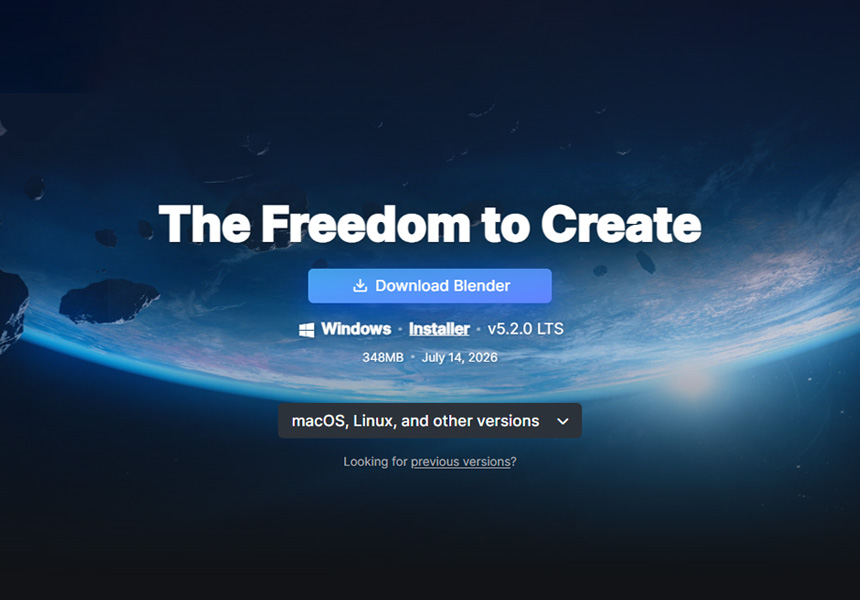
First, open the official Blender website (blender.org). It's run by the Blender Foundation, the non-profit that develops Blender. You'll see a "Download Blender" button. Below the button, you'll also see the number of the latest version at that time.
Click this button.
The latest version does not run on older Intel-based Macs (roughly models released before 2020). If that might be you, check the supplementary column "More about versions and system requirements" first.
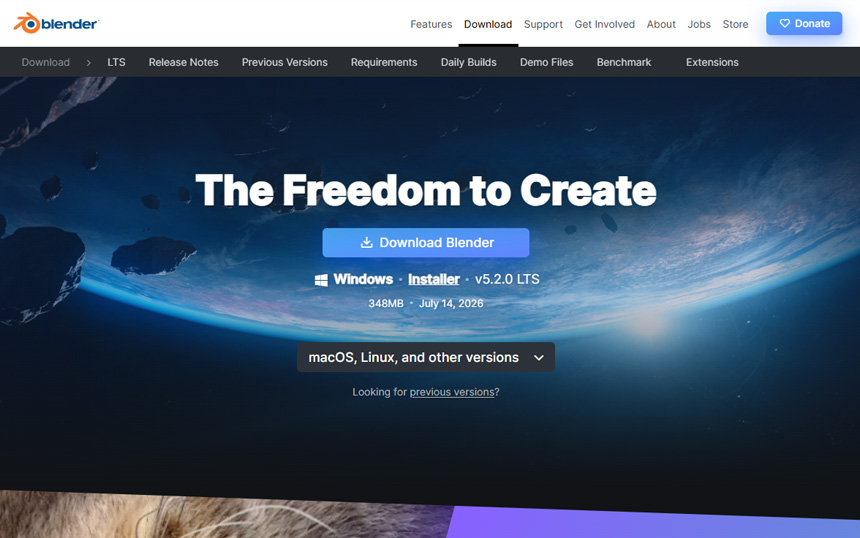
When you click the button, a file matching your computer — Windows, Mac, or Linux — is selected automatically and the download begins. No complicated settings or account registration are required.
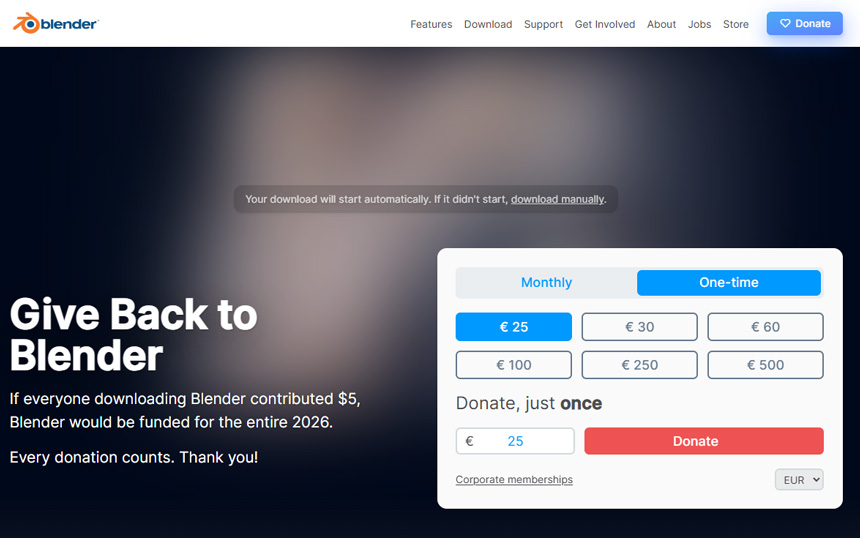
Right after you click, a "Donation" page may appear. This does not mean you're being charged. Blender is free software funded by donations from users and companies around the world, which is why the donation page is shown.
Even when this page appears, the download continues as normal. If you don't wish to donate, you can close it.
Once the download finishes, the next step is installation.
Curious about version types or other ways to get Blender? See the supplementary column "More about versions and system requirements"
Install Blender
Open the downloaded file and follow the on-screen instructions.
On Windows
-
Double-click the downloaded file (
.msi)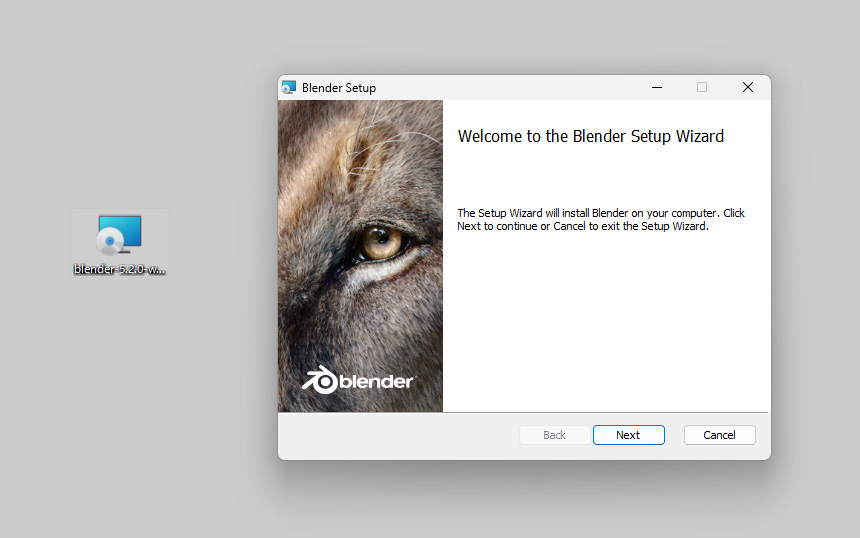
- Click the "Next" button to start the installation
- If a confirmation window asks "Do you want to allow this app to make changes to your device?", click "Yes"
-
When "Finish" appears, you're done
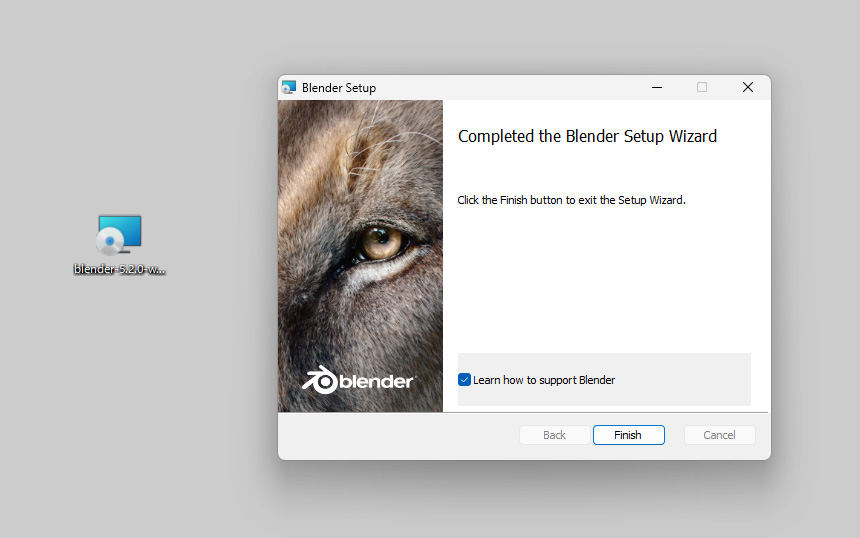
There's no need to change any settings along the way. You can leave everything at the defaults.
A blue warning screen saying "Windows protected your PC" may appear. As long as the file was downloaded from the official site, it's safe to run. How to handle this warning is covered in the supplementary column "More about versions and system requirements".
On Mac
- Double-click the downloaded file (
.dmg) to open it -
Drag and drop the Blender icon inside into the "Applications" folder
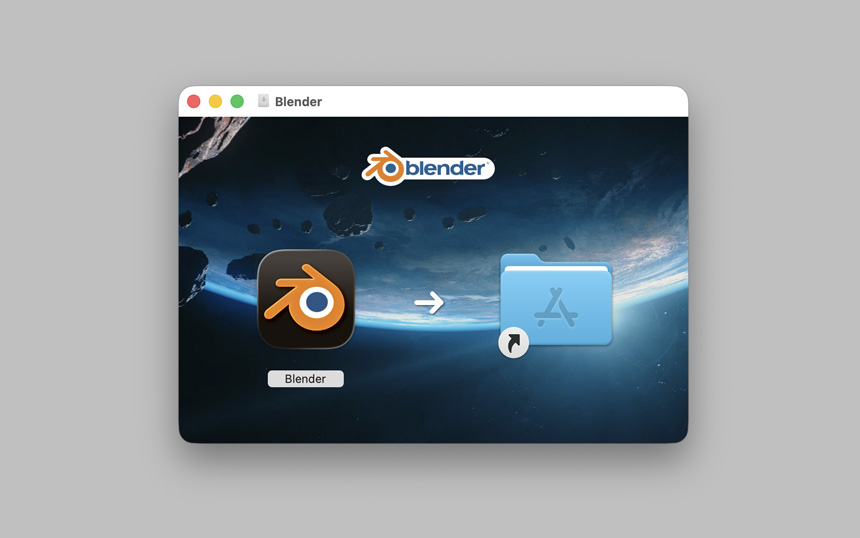
That's it — installation is complete. Once the files have been copied, Blender is ready to use.
At first launch, you may see a warning such as "the developer cannot be verified." As long as it's Blender downloaded from the official site, it's safe to open. How to handle it is covered in the supplementary column "More about versions and system requirements".
Change the display language
Once installation is finished, open Blender. Only the very first time you open it, a simple setup screen (Quick Setup) appears.
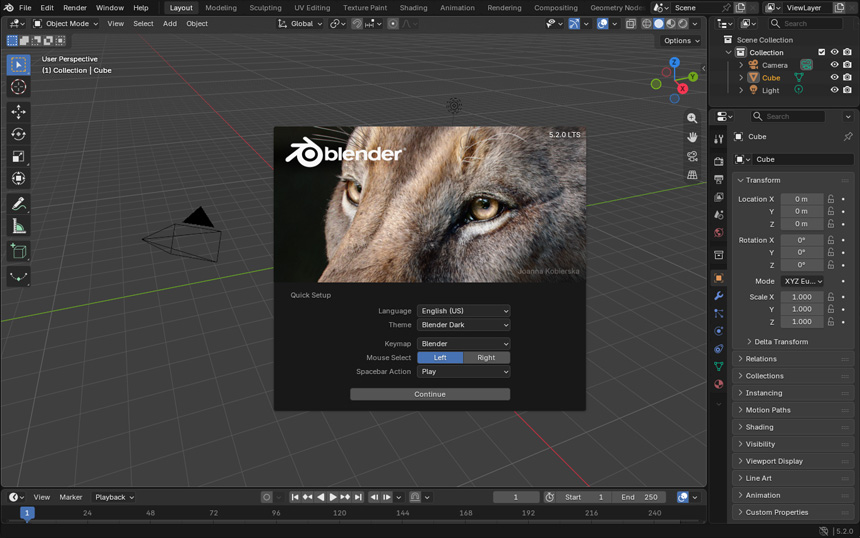
Click "Language" on this screen and choose the language you want to use (this article uses Japanese as the example). That's all it takes to switch Blender's interface to your chosen language.
If you closed the setup screen, or want to change the language later, you can set it with the following steps.
- Open "Edit" in the top menu
- Choose "Preferences"
- Select "Interface" on the left
-
In the "Language" section near the bottom, change "Language" to the language you want
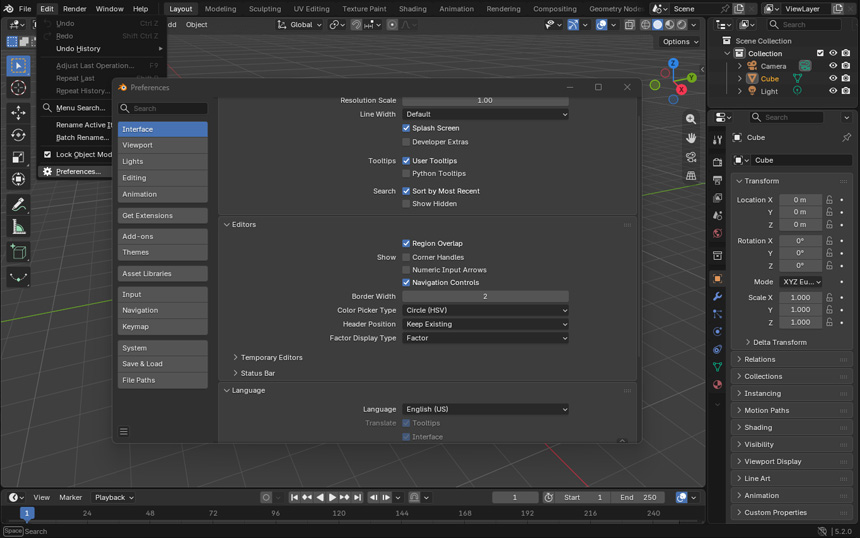
That completes the language setup.
For more details on the language settings, see the supplementary column "Getting more out of the language settings"
Confirm Blender runs correctly
Close Blender once, then open it again.
When Blender starts, a screen appears listing items such as "General" and "2D Animation." This time, choose "General" at the top left.
You can also close this window by clicking outside it instead of clicking "General." Either way, the same workspace opens.
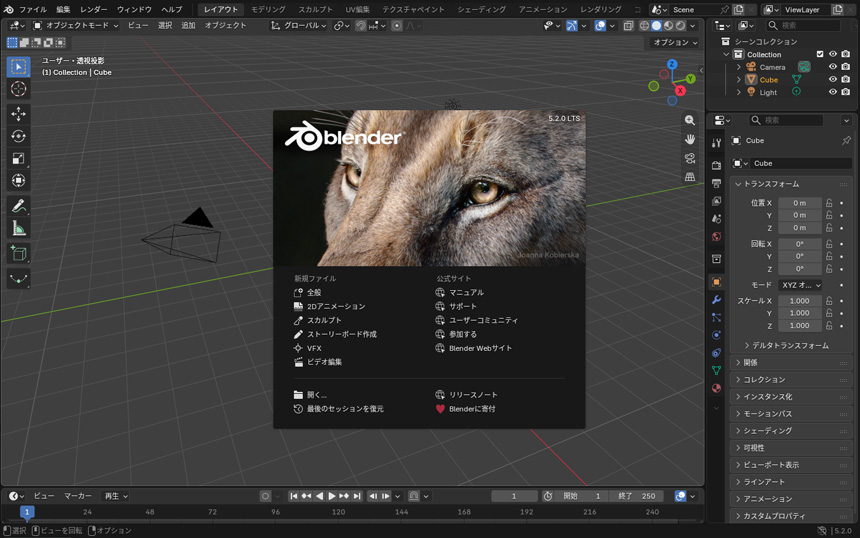
If you see a screen with a gray cube placed in the center, you're all set.
If Blender fails to start or freezes along the way, your computer's performance or graphics capability is often the reason. Causes and fixes are covered in the supplementary column "More about versions and system requirements".
What to do next
With that, Blender is ready to use.
Next, let's get hands-on and learn the basics of modeling. The next article covers everything from viewport navigation to modifiers, building a single coffee cup along the way.
Next article: Blender Modeling Basics: Move, Rotate, Scale, Extrude, and ModifiersFrequently asked questions
Q. Is Blender free? Will I be charged later?
A. It is free. There are no additional charges, including for commercial use. A "Donation" page may appear right after you download, but donating is optional.
Q. Does it run on Windows, Mac, and Linux?
A. Yes, all three operating systems are supported. However, older Intel-based Macs (roughly models released before 2020) cannot run the latest version, so use the previous-generation 4.5 LTS instead (see the supplementary column "More about versions and system requirements"). Note that the installation steps in this article cover Windows and Mac. If you use Linux, please refer to the official Blender manual.
Q. Should I install the latest version or the LTS version?
A. Basic operations are much the same in either. If you want to keep the same environment for a long time, the LTS version is recommended (see the supplementary column "More about versions and system requirements").
Q. If I change the interface language, won't the menu names differ from tutorial videos?
A. It may be confusing at first, but as you keep using it, you'll naturally learn how the terms map between languages.
Q. Do I need to remove the previous version before installing a new one?
A. No. Installing a new version automatically replaces the previous one, so you can install it as is. If you want to keep multiple versions side by side, the ZIP release introduced in the supplementary column "More about versions and system requirements" is a good fit.
Q. How do I uninstall it?
A. On Windows, open Settings → Apps, select Blender, and choose Uninstall. On Mac, simply move Blender from the Applications folder to the Trash (see the supplementary column "More about versions and system requirements").
Q. What should I do if it won't start or runs slowly?
A. An outdated graphics driver is the most common cause. Try updating to the latest driver (see the supplementary column "More about versions and system requirements").
Supplementary Columns
More about versions and system requirements
Latest version or LTS — which should I choose?
Blender offers two kinds of releases: the "latest version" and the "LTS version (Long-Term Support)." The latest version lets you try new features first, while the LTS version stays stable and supported for a longer period (two years).
If you're just starting out, basic operations are much the same in either. Choose LTS if you want to learn in the same environment for a long time, or the latest version if new features interest you — either is fine.
Blender 5.2 LTS, the version used in this article, was released in July 2026 and will be supported until July 2028.
Other ways to get Blender
Besides the installer from the official site, there are a few other ways to get it.
| Method | Characteristics |
|---|---|
| Official site installer (covered in this article) | The safe default. Simple steps. |
| ZIP release (no installation needed) | Just extract and run. Good for keeping multiple versions at once. |
| Steam release | Installed via the Steam app. Easy automatic updates. |
| Microsoft Store release | From the Microsoft Store on Windows. Easy automatic updates. |
Whichever you choose, the Blender inside is the same. If you have no particular preference, you'll be fine installing from the official site as covered in this article.
Running multiple versions side by side
Here's how to keep several versions around — for example, "this tutorial was made with the 4.5 series, so I want to try it alongside 5.2."
On Windows
Download the "Windows Portable (.zip)" from the official Blender download page.
- Extract the downloaded ZIP file
- Give the extracted folder a recognizable version name (e.g., "Blender 5.2", "Blender 4.5") and place it anywhere you like
- Double-click "blender.exe" inside the folder to launch it directly
Unlike the installer release, it isn't replaced when you install a newer version, so by keeping the folders separate, you can switch between multiple versions. When you no longer need one, delete the whole folder and it's gone cleanly.
On Mac
You don't need the ZIP release — the normal installation method covered in this article already lets versions coexist. Rename your existing Blender to something like "Blender 4.5" first, then open the other version's .dmg and drag it into the "Applications" folder. Since the names no longer clash, both remain.
If You Need an Even Older Version
If you need an older version that no longer appears on the download page, you can find it on the Previous Versions page.
Not sure if your computer can run Blender?
Rough guidelines for running Blender are as follows.
- Processor (CPU): any computer released in the last several years is generally fine
- Memory: 8GB or more (ideally 16GB or more)
- Graphics hardware (GPU): as a guide, NVIDIA GeForce 900 series or later (2014 onward), AMD Radeon RX 400 series or later (2016 onward), or Intel Kaby Lake (7th-generation Core) or later (2017 onward). Intel's integrated graphics are included, so a computer without a separate graphics card will still run Blender
- Mac: an Apple Silicon (M1 or later) chip and macOS 13 or later are required (see the next section)
If your computer is on the older side, choosing "Blender 4.5 LTS," which has more relaxed requirements, is another option. More detailed requirements are listed on Blender's official requirements page.
If you have an older Intel-based Mac
Blender 5.0 and later require an Apple Silicon chip (M1 or later) and macOS 13 or later. They do not run on Intel-based Macs (roughly models released before 2020).
To check which one you have, click the Apple menu at the top left of the screen → "About This Mac." If it says something like "Chip: Apple M1," you can use the latest version. If it says "Processor: Intel...," it's an Intel Mac.
For Intel Macs, use the previous-generation "Blender 4.5 LTS" (supported until July 2027). You can get it from "Previous Versions" on the official download page. Basic operations are almost identical to the latest version, so it won't hold back your learning.
If a security warning appears during installation
This is a standard safety check: the first time you open a newly installed app, your computer asks, "Are you sure you want to open this?" As long as the file was downloaded from the official site, it's safe to allow it.
- Windows: if a blue screen says "Windows protected your PC," click "More info" → "Run anyway"
- Mac: if it says something like "the developer cannot be verified" and won't open, go to "System Settings" → "Privacy & Security" and click "Open Anyway" next to the Blender entry
Do I need to remove the old version? / How to uninstall
No need to remove it. When you install a new version with the installer covered in this article, the previous version is replaced automatically (on Mac, choosing "Replace" when dropping it into the Applications folder does the same).
If you want to keep multiple versions side by side to match a tutorial's version, the ZIP release (see the table above) is a good fit. Just keep each version in its own folder.
Versions you no longer need can be removed the same way as any other software.
- Windows: "Settings" → "Apps" → "Installed apps," select Blender and choose "Uninstall"
- Mac: move Blender from the "Applications" folder to the Trash
Note that even after uninstalling, your settings (such as the language setting) remain saved in a separate location, so they carry over if you reinstall. If you want to remove the settings completely as well, delete
the AppData\Roaming\Blender Foundation folder on Windows, or the Blender folder inside "Library" → "Application Support" on Mac (both are hidden folders by default, so enable "show hidden files" if you
can't find them).
If it won't start or freezes
In most cases, the cause is an outdated graphics driver (GPU driver). Downloading and installing the latest driver from your computer manufacturer's website often resolves it. Security software can also block Blender from running, so if that might apply to you, try adding Blender to your security software's exclusion list.
Getting more out of the language settings
Uncheck "New Data"
The language settings include an item called "New Data." If it's checked, the names of newly created objects are written in your interface language too, which can cause trouble later when working with other software. It's generally recommended to leave it unchecked.
If you see garbled text or odd translations
Occasionally, parts of the menu may appear garbled or awkwardly translated. This tends to happen in older versions of Blender, so updating to the latest version usually resolves it.
Are a mouse and numpad required?
A mouse is essentially required (for navigating 3D space). A numpad (numeric keypad) makes viewpoint control smoother, but you can substitute for it in the settings, so you can start just fine on a laptop.